JPG vs PNG vs HEIF: Which Image Format to Use
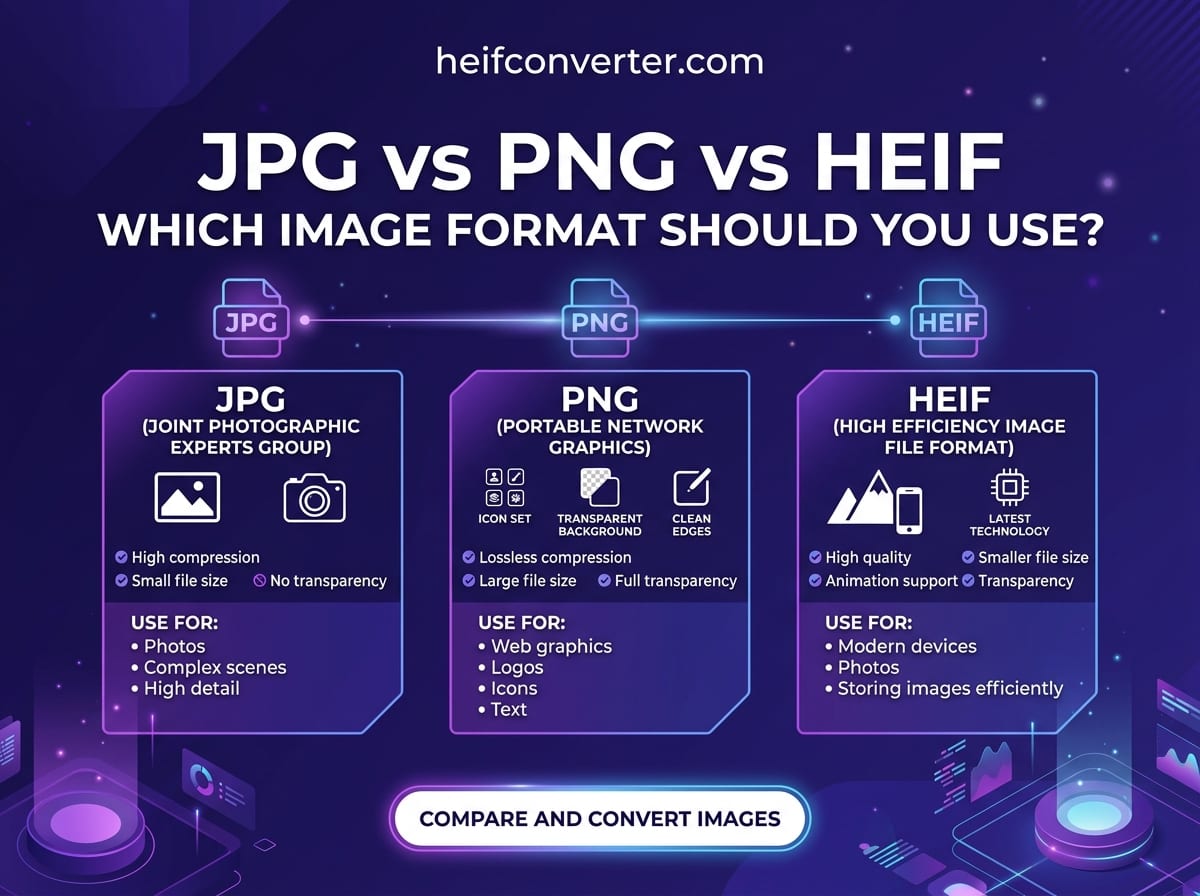
Three formats, three completely different jobs — and most file headaches come from using the wrong one. JPG is the universal standard, PNG is the quality-and-transparency specialist, and HEIF is the modern space-saver. This guide compares all three side by side so you always know which to pick.
The 30-Second Summary
- JPG — the universal choice for photos. Opens everywhere, good compression, no transparency. The safe default.
- PNG — best for graphics, logos, screenshots, and anything needing transparency or perfect quality. Large files for photos.
- HEIF — the most efficient for photo storage (Apple's iPhone format), but poorly supported outside Apple devices.
Side-by-Side Comparison
| Feature | JPG | PNG | HEIF |
|---|---|---|---|
| Compression | Lossy | Lossless | Lossy (efficient) |
| File size (photo) | Medium | Very large | Smallest |
| Transparency | No | Yes | Yes |
| Best for | Photos, sharing | Graphics, text | Photo storage |
| Compatibility | Universal | Universal | Apple / Safari only |
| Released | 1992 | 1996 | 2015 |
JPG: The Universal Standard
JPG (also written JPEG) has been the default photo format for over 30 years. Its superpower is compatibility — it opens on every device, browser, app, camera, and printer ever made, with zero friction. It uses lossy compression to keep files reasonably small, which is fine for photographs.
Strengths: universal support, small enough files, ideal for photos and sharing. Weaknesses: no transparency, and lossy compression can show blocky artifacts around sharp edges and text. It's the format to choose when you simply need something that works everywhere.
PNG: The Quality and Transparency Specialist
PNG uses lossless compression, preserving every pixel exactly. That makes it the go-to for images where precision matters: logos, icons, diagrams, screenshots, and anything with sharp text or hard edges. It also supports transparency, which is why it dominates web graphics.
Strengths: perfect quality, transparency, universal support. Weaknesses: file sizes balloon for photographs, making it a poor choice for camera images. Use PNG for graphics, not for photos.
HEIF: The Modern Space-Saver
HEIF is the newest of the three and the most efficient. It stores photos at roughly half the size of JPG while supporting transparency, richer color, depth maps, and multiple images in one file. Apple adopted it as the default iPhone format (using the .heic extension) in 2017.
Strengths: smallest files, best quality-to-size ratio, modern features. Weaknesses: limited compatibility — only Safari displays it among browsers, and many devices and apps can't open it without help, thanks to patent licensing on its HEVC compression. It's excellent for storage but a headache for sharing.
How to Choose: A Simple Decision Guide
| What You're Doing | Best Format |
|---|---|
| Sharing a photo with anyone | JPG |
| Uploading to a website or form | JPG (or WebP) |
| Saving a logo or icon | PNG |
| Screenshot with sharp text | PNG |
| Need a transparent background | PNG |
| Storing photos on an iPhone | HEIF |
| Maximizing phone storage | HEIF |
The Practical Workflow
For most people, the formats work together rather than in competition. Photos are captured and stored as HEIF to save space, then converted to JPG when shared or uploaded, while PNG handles any graphics, logos, or screenshots along the way. If your images are bound for a website, WebP is worth considering as a modern alternative that beats all three on the size-plus-compatibility balance — see our best image format for websites guide.
For deeper two-way breakdowns, see HEIF vs JPG and HEIF vs PNG.
Frequently Asked Questions
Which is the best image format overall?
There's no single best — it depends on the job. JPG for universal photo sharing, PNG for graphics and transparency, HEIF for efficient photo storage. Pick by use case, not by ranking.
Which format has the smallest file size?
HEIF, for photographs — roughly half the size of JPG. PNG is the largest for photos because it's lossless.
Which format is most compatible?
JPG and PNG are tied for universal compatibility. HEIF is the least compatible, working mainly on Apple devices and in Safari.
Should I convert HEIF to JPG or PNG?
Convert to JPG for photos you're sharing or uploading. Convert to PNG only if you need lossless quality or transparency. See our conversion guide.
Got HEIF or HEIC photos to convert? Turn them into JPG, PNG, or WebP in your browser — free, instant, and 100% private.