Convert HEIC to JPG Free: The Easy Way
HEIC photos that won't open are one of the most common headaches for iPhone owners — and converting them to JPG fixes it in seconds. This guide covers every reliable way to do it, on any device, from the fastest browser-based method to built-in tools on Windows, Mac, and iPhone. Pick whichever fits your setup.
The Fastest Way: Convert in Your Browser
The quickest method works on any device and installs nothing. Because the conversion happens locally in your browser, your photos are never uploaded to a server — which keeps personal images completely private.
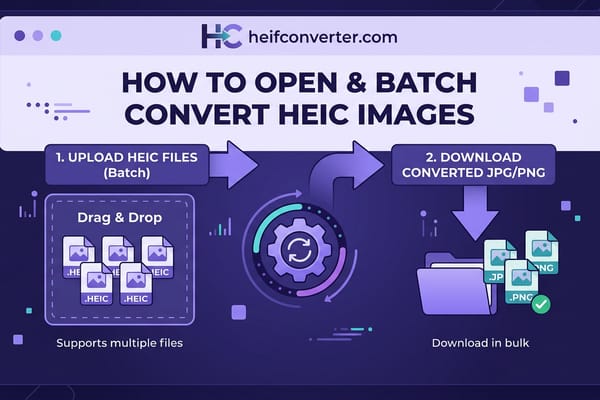
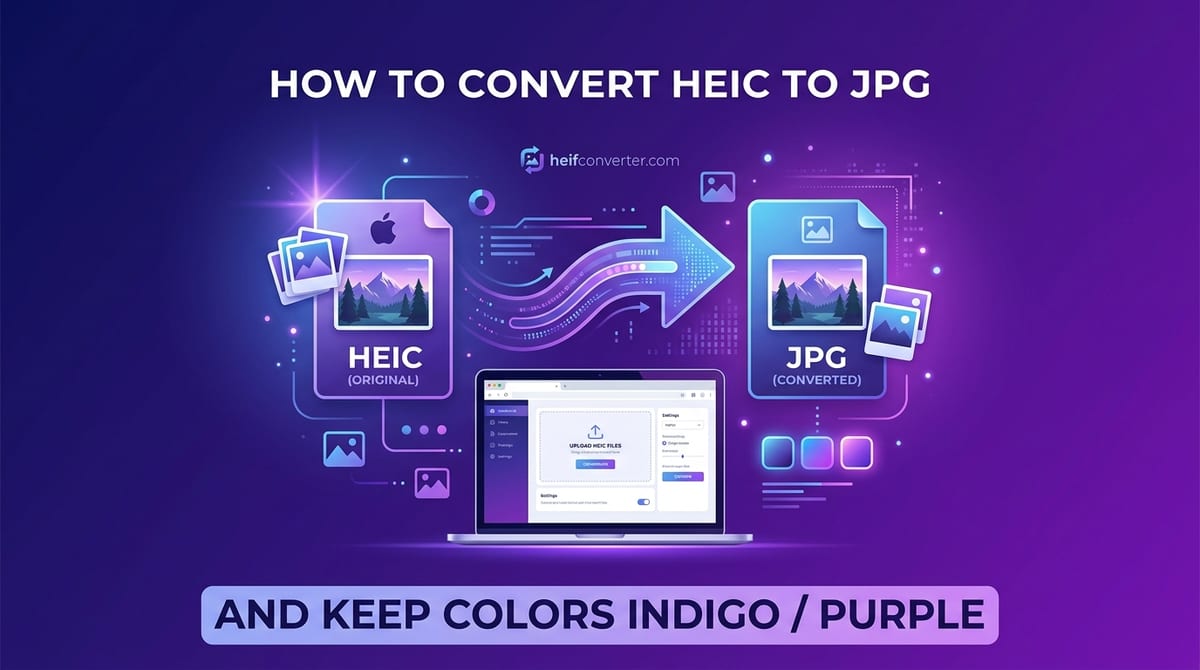
- Open the HEIC to JPG converter in any browser, on any device.
- Drag your HEIC files onto the box, or tap to select them from your device.
- Choose JPG as the output format.
- Download your converted images — done in seconds.
No account, no email, no watermark, and no software to install. This is the recommended option for most people, especially when the photos are personal or sensitive. If you have a whole folder to do at once, see how to batch convert HEIC images.
On Windows (Using Paint or Photos)
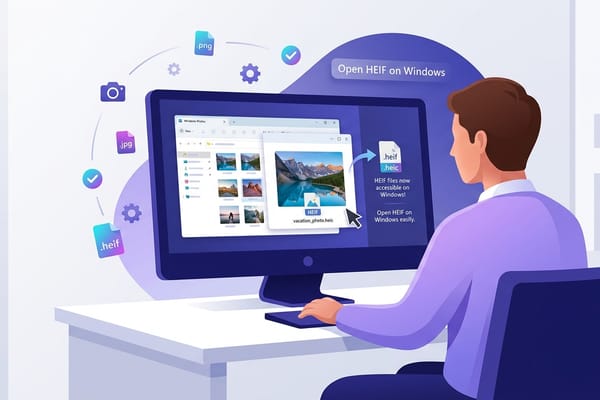
Windows can convert HEIC to JPG once it can open the format. First, you may need the free HEIF Image Extensions from the Microsoft Store (and on some PCs the HEVC Video Extensions as well). Then:
- Right-click the HEIC file and choose Open with → Paint.
- Click File → Save as.
- Choose JPEG picture as the format.
- Pick a location and save.
This works well for one or two files. The catch: the required extensions can be glitchy, and the HEVC one is sometimes a paid add-on that fails to install. If you hit that wall, the browser method above skips the problem entirely.
On a Mac (Using Preview)
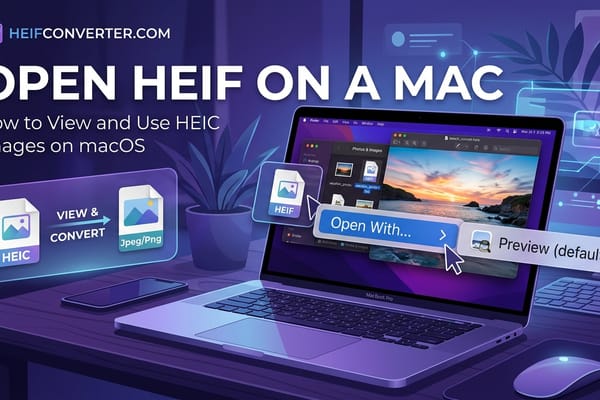
Macs open HEIC natively, so converting is built in:
- Double-click the HEIC file to open it in Preview.
- Click File → Export.
- Set the format to JPEG and adjust quality if you like.
- Click Save.
To convert several at once, select them all in Finder, open them together in Preview, choose Edit → Select All in the sidebar, then use File → Export Selected Images.
On an iPhone (Three Easy Tricks)
You don't have to move photos to a computer. Try any of these:
1. Copy and paste into Files. In Photos, select your images, tap Share, and choose Copy Photos. Open the Files app, go to a folder, and paste — iOS often saves the copies as JPG.
2. Change the camera setting for future photos. Go to Settings → Camera → Formats → Most Compatible. New photos will be JPG (this won't convert existing ones).
3. Set sharing to auto-convert. Under Settings → Photos, scroll to Transfer to Mac or PC and choose Automatic. When you transfer photos, they convert to JPG automatically.
On Android
Android phones can't natively convert HEIC, but the browser method works perfectly: open the converter in Chrome or any mobile browser, select your HEIC files, choose JPG, and download. Alternatively, opening a HEIC file in Google Photos and choosing to save or edit a copy often produces a JPG.
The Email Trick (Works Anywhere)
A clever shortcut: email the HEIC photo to yourself from an iPhone. Apple's Mail app frequently sends the image as a JPG attachment automatically. Open the email on any device and download the attachment — it's a JPG. This is handy in a pinch, though it's limited by email attachment size and isn't reliable for large batches.
Which Method Should You Use?
| Your Situation | Best Method |
|---|---|
| Any device, fastest, private | Browser converter |
| A few files on Windows | Paint (after extensions) |
| On a Mac | Preview → Export |
| Quick one-off on iPhone | Copy & paste into Files |
| A whole folder at once | Browser converter (batch) |
Troubleshooting
- HEIC won't open on Windows even after installing extensions? The HEVC codec is the usual culprit and is notoriously unreliable. Use the browser converter instead.
- Converted file looks slightly different? JPG uses lossy compression. For a perfect copy, convert to PNG instead of JPG.
- Lost photo details like location or date? Some methods strip metadata. If that matters, choose a converter that preserves it.
Frequently Asked Questions
What's the easiest way to convert HEIC to JPG?
A browser-based converter — it works on any device, installs nothing, and is instant. Just add your files, choose JPG, and download.
Is it safe to convert HEIC online?
It's safest with a converter that processes files locally in your browser, so your photos are never uploaded to a server.
Does converting reduce quality?
Only slightly, and it's usually invisible. If you need a lossless result, convert to PNG instead of JPG.
Can I convert HEIC to JPG for free?
Yes. Browser converters and the built-in tools on Windows, Mac, and iPhone are all free.
How do I convert many HEIC files at once?
Use a converter that supports batch processing — add all your files in one go and download them together. See our batch conversion guide.
Ready to convert? Turn your HEIC photos into JPG right now — free, instant, and 100% private, with nothing uploaded to any server.