How to Batch Convert HEIC Files (Free & Fast)
Converting one HEIC photo is easy. Converting two hundred from a vacation is where you need a real batch method. This guide covers the fastest ways to convert entire folders of HEIC images to JPG at once — on any device — plus tips for keeping your file names and photo details intact.
The Fastest Way: Batch Convert with HeifConverter.com
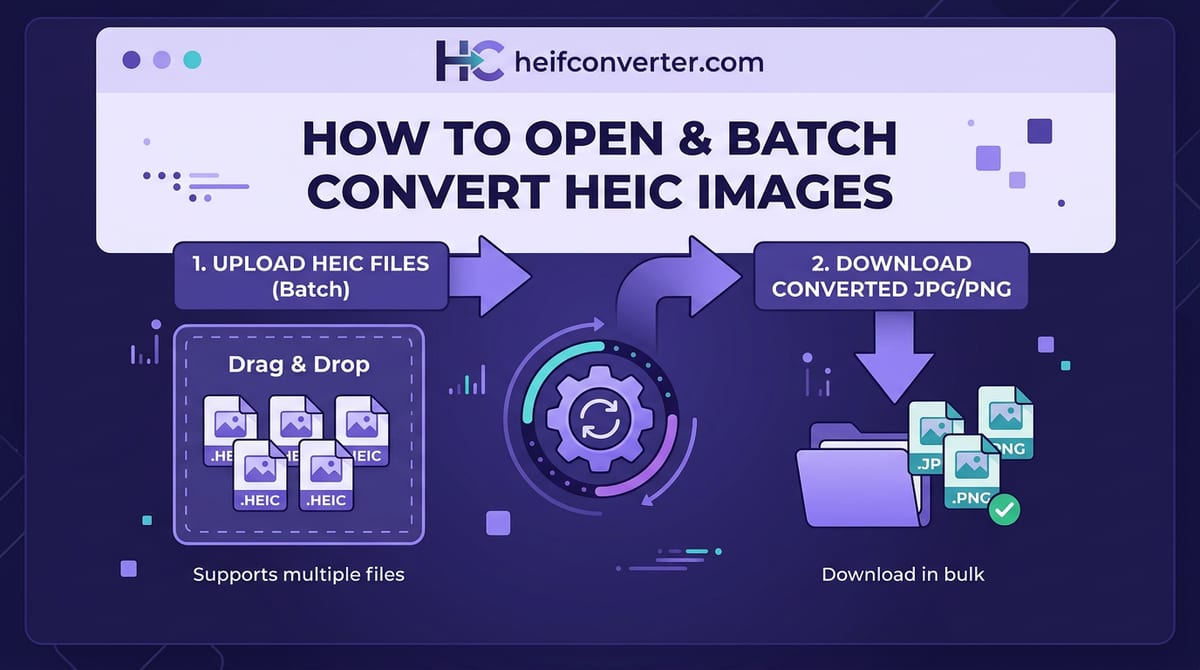
HeifConverter.com is built for batch conversion. Everything runs in your browser using WebAssembly, so even a hundred photos at once never leave your device — there's no upload, no sign-up, and no file-count limit.
- Open the HEIC converter on any device (desktop, iPhone, iPad, Android, Chromebook).
- Drag your HEIC files into the drop zone, or click Select files and pick them all from your library.
- Choose your output format: JPG (universal), PNG (lossless), WebP (smallest for web), PDF, or SVG.
- Hit Convert All. Each photo converts in your browser and shows up in the result list.
- Use Download All (ZIP) to grab every converted image in a single zipped bundle — original file names are preserved.
Two power-user options if you're working with many photos:
- Merge to one PDF. If you choose PDF as the output, you can combine every photo into a single multi-page PDF — handy for sending vacation photos, receipts, or scan-style documents as one file.
- Copy to clipboard. A single converted image can be copied directly to your clipboard for pasting into a chat, document, or design tool — no save-to-disk step needed.
This is the recommended option whenever you have more than a few HEIC files. For a single-file walkthrough, see our main HEIC to JPG guide.
Batch Convert on a Mac (Preview)
macOS can batch-convert without any extra apps using Preview's built-in export:
- Select all the HEIC files in Finder and open them together in Preview.
- In the sidebar, choose Edit → Select All.
- Go to File → Export Selected Images.
- Click Options, set the format to JPEG, choose a destination folder, and export.
The Photos app can also export many images at once via File → Export. More detail in our Mac guide.
Batch Convert on Windows
Windows doesn't have a clean built-in batch converter for HEIC. Microsoft Paint converts only one file at a time, which is impractical for a large folder. Your best options are:
- A browser converter — the easiest route, with no install and full batch support.
- A third-party image tool such as XnView MP or IrfanView, both of which include batch-conversion features and can process whole folders of HEIC files at once. Download these from their official sites.
Batch Convert on Linux (Command Line)
Linux has the most efficient batch method of all once libheif is installed. A one-line loop using heif-convert turns every HEIC file in a folder into a JPG, preserving metadata:
for i in *.HEIC; do heif-convert "$i" "${i%.HEIC}.jpg"; doneImageMagick offers a similar approach with mogrify -format jpg *.heic. See our Linux guide for installation steps.
Batch Convert on an iPhone
You can convert several photos at once directly on your phone:
- In Photos, select all the images you want to convert.
- Tap Share, then Copy Photos.
- Open the Files app, go to a folder, and paste — iOS often saves the copies as JPG.
Alternatively, set Settings → Photos → Transfer to Mac or PC to Automatic so photos convert to JPG whenever you transfer them off the phone.
Tips for a Clean Batch Conversion
- Keep your file names: Good batch tools preserve the original names (just with a new extension) so your photos stay in order.
- Decide on metadata: If date, location, and camera info matter, choose a method that preserves metadata —
heif-convertand most quality converters do; some strip it. - Pick the right format: JPG for sharing and uploads, PNG if you need lossless copies. Converting hundreds to PNG will produce much larger files.
- Work on copies: Keep your original HEIC files until you've confirmed the converted versions look right, especially for irreplaceable photos.
Which Method Should You Use?
| Platform | Best Batch Method |
|---|---|
| Any device | Browser converter |
| Mac | Preview → Export Selected |
| Windows | Browser or XnView/IrfanView |
| Linux | heif-convert loop |
| iPhone | Copy & paste into Files |
Frequently Asked Questions
What's the easiest way to convert many HEIC files at once?
A browser-based converter that supports batch uploads — add all your files, choose JPG, and download them together, with no software to install.
Can I batch convert HEIC without uploading my photos?
Yes. Browser converters that process files locally never upload them, and the Mac, Linux, and iPhone methods above all run entirely on your own device.
Will batch conversion keep my photo dates and locations?
It depends on the tool. The Linux heif-convert command and most good converters preserve metadata; some basic methods strip it, so check if that matters to you.
Is there a limit to how many HEIC files I can convert at once?
Browser converters that work locally aren't limited by upload caps, so they handle large batches well. Performance depends mainly on your device's speed.
Got a whole folder of iPhone photos to convert? Batch convert HEIC to JPG in your browser — free, fast, and private, with nothing uploaded to any server.