How to Open HEIC Files on Mac (macOS)
Good news if you're on a Mac: HEIF and HEIC files open with no setup at all. Unlike Windows, macOS has built-in support, so these files behave like any other photo. This guide covers how to view them, how to convert them to JPG when you need to share, and what to do on the rare occasions something doesn't work.
Macs Open HEIC Automatically
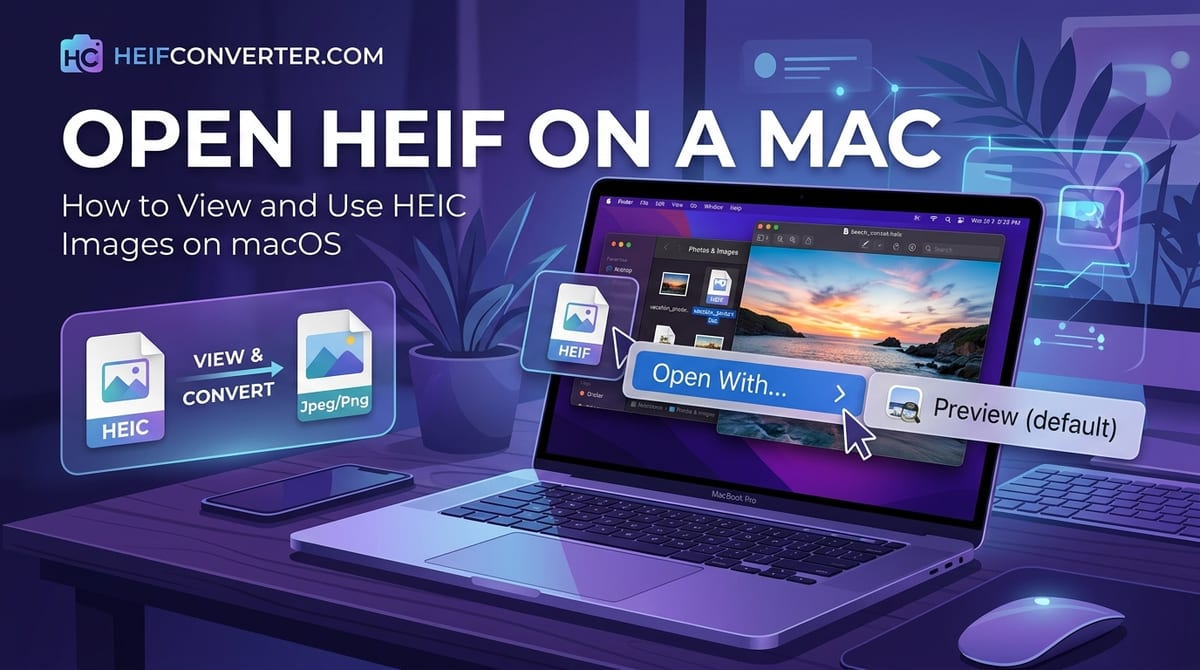
Apple created the modern HEIC format, so its own computers support it natively. Any Mac running macOS High Sierra (2017) or later can open, view, and edit HEIC and HEIF files out of the box — no extensions, no downloads, no settings to change.
That means you can:
- Double-click a HEIC file to open it in Preview
- See full-resolution thumbnails in Finder
- Press the spacebar on a selected file to see it instantly with Quick Look
- Import and edit HEIC photos in the Photos app
Converting HEIC to JPG with Preview
Even though your Mac opens HEIC fine, you'll often need a JPG to send to someone on Windows or Android, or to upload to a website. Preview makes this simple:
- Double-click the HEIC file to open it in Preview.
- Click File → Export in the menu bar.
- Set the Format to JPEG (use the Quality slider to balance size and quality).
- Click Save.
You now have a JPG copy alongside the original HEIC file.
Converting Several Files at Once in Preview
Preview can batch-convert without any extra software:
- Select all the HEIC files in Finder, then open them together in Preview.
- In Preview's sidebar, choose Edit → Select All.
- Go to File → Export Selected Images.
- Click Options, set the format to JPEG, and export them all to a folder.
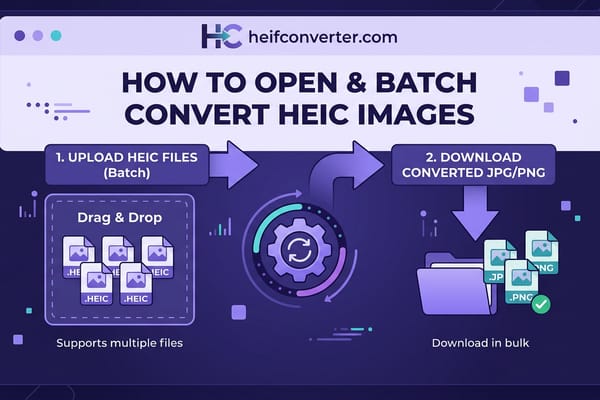
For larger jobs, see our batch conversion guide.
Converting from the Photos App
If your images live in the Photos app, you can export them as JPG directly:
- Select the photos you want.
- Choose File → Export → Export [number] Photos.
- Set the Photo Kind to JPEG and click Export.
A Quick Drag-and-Drop Trick
For a fast one-off conversion without opening any app, you can use the Quick Actions in Finder: right-click a HEIC file, choose Quick Actions → Convert Image, and pick JPEG. This built-in shortcut on recent macOS versions converts in a couple of clicks.
When HEIC Won't Open on a Mac
It's rare, but a few situations can trip you up:
- Very old macOS: Versions before High Sierra (2017) don't support HEIC. Update macOS, or use a browser converter that works on any system.
- A corrupted or partial file: If a HEIC file was interrupted mid-transfer (for example, a failed AirDrop), it may not open. Re-transfer the original.
- An app that predates HEIC: Some older third-party software can't read HEIC even though macOS can. Convert to JPG first, then open it there.
Stop HEIC Files Appearing in the First Place
If the HEIC files come from your own iPhone and you'd rather not convert them repeatedly, set the phone to shoot JPG: on the iPhone, open Settings → Camera → Formats and choose Most Compatible. New photos will be JPG, while existing ones stay as HEIC.
Frequently Asked Questions
Do I need to install anything to open HEIC on a Mac?
No. Any Mac on macOS High Sierra (2017) or newer opens HEIC files automatically in Preview, Finder, Quick Look, and Photos.
How do I convert HEIC to JPG on a Mac for free?
Open the file in Preview and choose File → Export, setting the format to JPEG. It's built in and free. The Finder "Convert Image" Quick Action is even faster for single files.
Why does my Mac open HEIC but my friend's PC doesn't?
Apple's devices support HEIC natively, while Windows needs extra extensions installed. Converting to JPG before sharing avoids the problem entirely.
Can I batch-convert HEIC to JPG on a Mac?
Yes — Preview's Export Selected Images feature converts many files at once with no extra software. For very large batches, a browser converter handles them in one go.
Does converting HEIC to JPG on a Mac reduce quality?
Slightly, and it's usually invisible. Use the Quality slider in Preview to keep it high, or export as PNG for a lossless copy.
Need to convert HEIC quickly without opening an app? Use our browser-based converter — free, instant, and fully private, on Mac or any other device.