How to Open HEIC Files on Windows 10 & 11
You double-click a photo from an iPhone and Windows throws an error: "you'll need a new app to open this .heic file." It's one of the most common Windows annoyances, and there are several ways to fix it — from official Microsoft extensions to a no-install browser method. This guide walks through every option, what each one costs, and which to choose when the others fail.
Why Windows Can't Open HEIC by Default
HEIC is Apple's default photo format, built on the HEIF standard. It relies on a compression technology called HEVC, which is covered by patents. Because of the licensing involved, Windows doesn't include HEIC support out of the box — you have to add it, and that's where most of the friction comes from. The good news: once support is in place, HEIC files open in the Photos app just like any JPG.
Method 1: Install the Microsoft Extensions (Official)
This is the official route and lets you view HEIC directly in the Windows Photos app and File Explorer. You need two pieces:
- HEIF Image Extensions — free, handles the container format.
- HEVC Video Extensions — handles the actual image decoding. This is sometimes a small paid item (around a dollar), though many systems already have it.
To install them:
- Open the Microsoft Store from the Start menu.
- Search for HEIF Image Extensions, choose the result published by Microsoft Corporation, and click Get.
- Search for HEVC Video Extensions and install it as well if HEIC files still won't open.
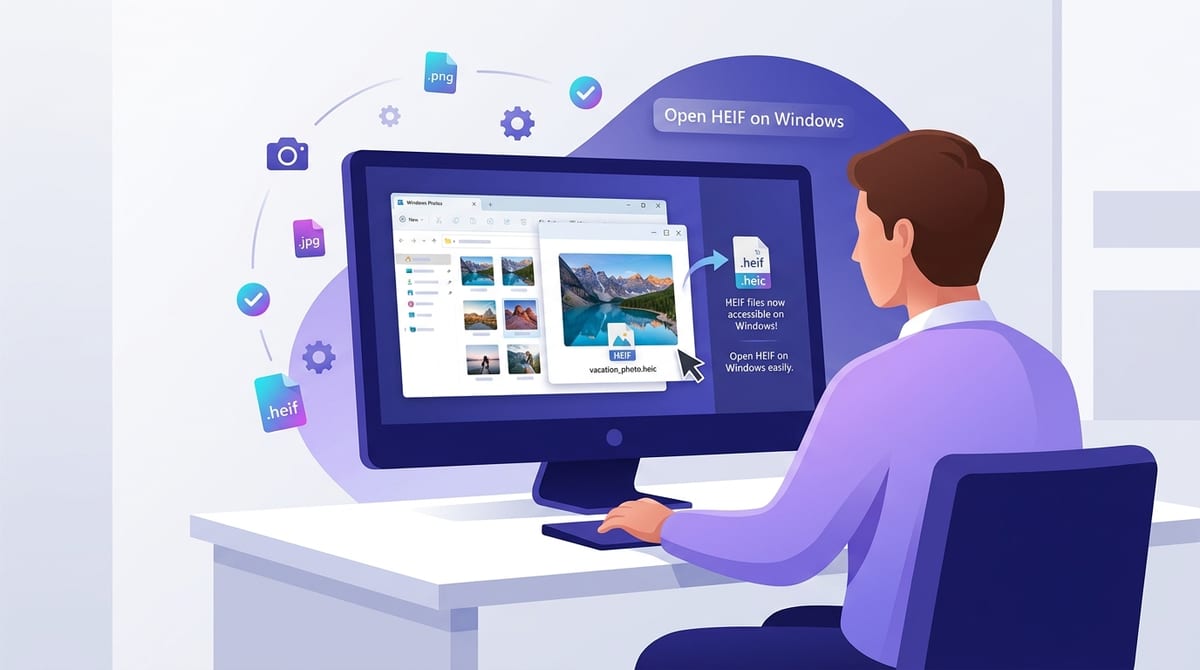
- Go back to your HEIC file in File Explorer and double-click it — it should now open in the Photos app.
A shortcut: if you just try to open a HEIC file in Photos first, Windows often shows a message saying "The HEIF Image Extension is required," with a direct link to install it. Clicking that link takes you straight to the right Store page.
Method 2: Convert with Microsoft Paint
Once the extensions above are installed, Windows can also convert HEIC to JPG using the built-in Paint app — handy when you need a file that opens everywhere:
- Right-click the HEIC file and choose Open with → Paint.
- Click File → Save as.
- Choose JPEG picture (or PNG).
- Pick a location and save.
This is fine for one or two images. For a folder full of them, jump to batch conversion.
Method 3: Convert in Your Browser (No Install)
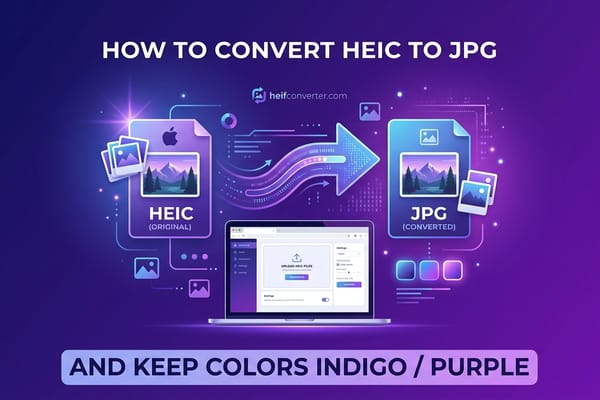
If you'd rather not touch the Microsoft Store at all — or the extensions won't cooperate — a browser-based converter is the simplest path. It works on any Windows version, installs nothing, and because it processes files locally in your browser, your photos are never uploaded anywhere:
- Open the HEIC converter in Edge, Chrome, or any browser.
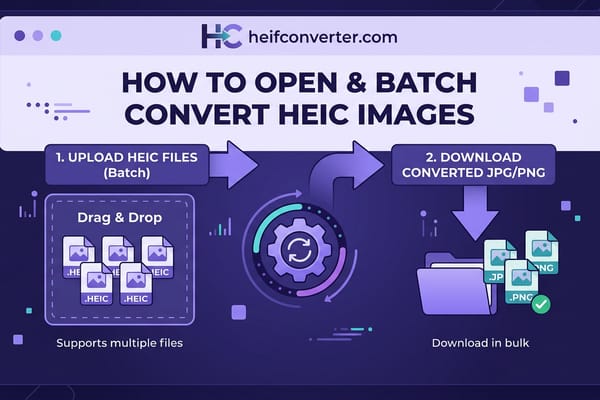
- Drag your HEIC files in, or click to select them.
- Choose JPG, PNG, or WebP.
- Download the converted images.
This is the method we recommend when you're dealing with personal photos, a managed work computer where the Store is locked down, or the all-too-common case of the HEVC extension simply refusing to install.
Method 4: Third-Party Image Viewers
Several established free image viewers include their own HEIC support, so you can view (and often convert) without any Microsoft extensions. Well-known options include IrfanView (with its plugin pack) and XnView MP, both long-standing Windows utilities. These are a good fit if you regularly work with HEIC and want a dedicated viewer rather than a one-off fix. Stick to reputable, widely reviewed software and download it from the developer's official site.
Method 5: Fix It at the Source (iPhone Settings)
If the HEIC files are coming from your own iPhone, you can stop the problem before it starts. Either change the camera to shoot JPG, or set transfers to auto-convert:
- Shoot JPG going forward: On the iPhone, open Settings → Camera → Formats and choose Most Compatible.
- Auto-convert on transfer: Open Settings → Photos, scroll to Transfer to Mac or PC, and select Automatic. Photos copied to your PC will arrive as JPG.
Neither of these converts the HEIC photos already on your phone, but they prevent new ones from causing trouble.
Which Method Should You Use?
| Your Situation | Best Method |
|---|---|
| Want to view HEIC in Windows Photos | Microsoft extensions |
| Just need a JPG to share | Browser converter |
| Store blocked (work PC) | Browser converter or viewer |
| Work with HEIC often | Third-party viewer |
| A whole folder at once | Browser converter (batch) |
Troubleshooting Common Problems
"HEVC Video Extensions won't install"
This is the single most common HEIC complaint on Windows. The extension sometimes fails with vague "something went wrong" errors or installs but doesn't activate. If you're stuck, skip it entirely and use the browser converter, which doesn't depend on any Windows codec.
"I installed the extension but files still won't open"
Make sure you have both the HEIF Image Extensions and the HEVC Video Extensions. The first handles the container; the second does the decoding. Missing the HEVC piece is the usual reason files stay broken.
"The Microsoft Store is blocked on my computer"
On managed work or school devices, the Store is often disabled by policy, so the extensions can't be installed. A browser-based converter or a portable third-party viewer is the practical workaround.
"Thumbnails don't show in File Explorer"
After installing the extensions, restart File Explorer (or your PC). Thumbnails sometimes take a sign-out or reboot to start rendering.
Frequently Asked Questions
Can Windows 11 open HEIC files natively?
Not entirely. Windows 11 needs the HEIF Image Extensions installed first, and usually the HEVC Video Extensions too. Some PCs come with these pre-installed; many don't.
Is opening HEIC on Windows free?
The HEIF Image Extensions are free. The HEVC Video Extensions are sometimes a small paid item. Browser converters and several third-party viewers are completely free alternatives.
What's the easiest way to deal with HEIC on Windows?
If you only need a usable image, converting to JPG in your browser is fastest and avoids the Microsoft Store entirely. If you want HEIC to open in Photos permanently, install the extensions.
Can I convert HEIC to JPG on Windows without software?
Yes — a browser-based converter runs entirely in your browser with no installation. See our full conversion guide for every method.
Skip the extension headaches entirely: convert your HEIC files to JPG in your browser — free, instant, and private, with nothing uploaded to any server.