How to Open HEIF Files on a Linux Based System
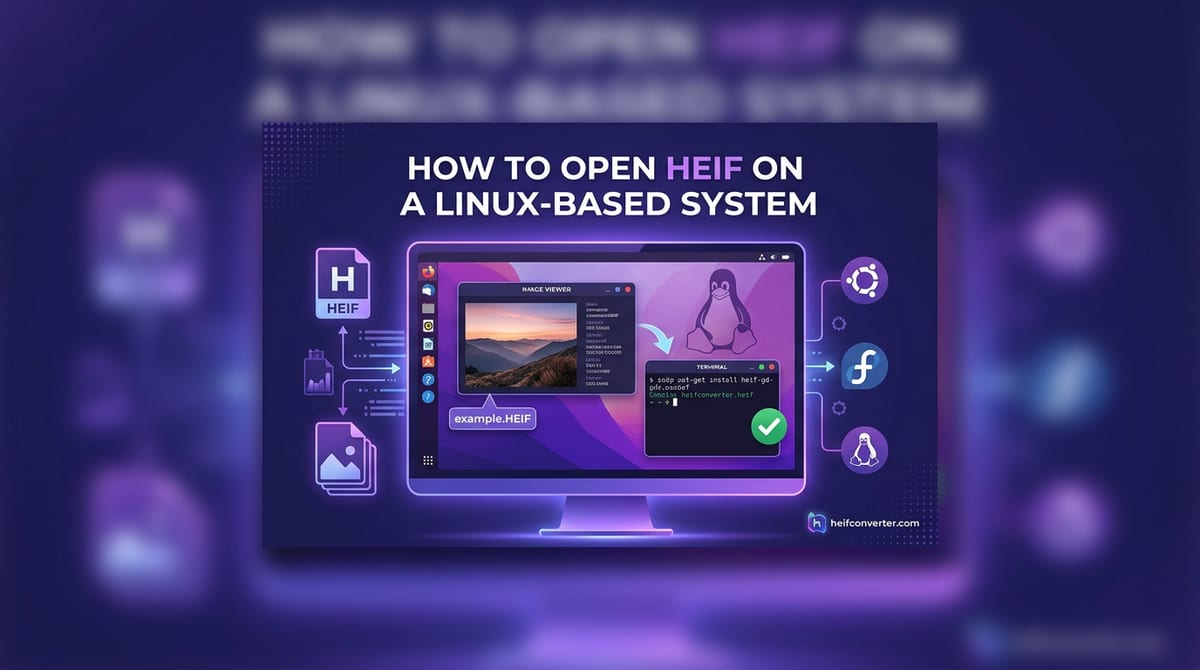
Try to open an iPhone photo on Linux and you'll often get a broken thumbnail and an "unsupported format" error. Whether HEIC works depends on your distribution and how recent it is. On the newest releases it just works; on older ones, a single library unlocks support across all your apps. Here's how to view and convert HEIC on Linux, with both graphical and command-line methods.
The Key Library: libheif
Nearly all HEIC support on Linux comes down to one library called libheif. Once it's installed, most of your existing apps — the GNOME image viewer, Nautilus thumbnails, GIMP, Krita, digiKam, Shotwell, and ImageMagick — can read HEIC files. HEIC is the Apple version of the HEIF standard, and libheif handles its decoding.
If You're on a Recent Distro, It May Already Work
Support has landed by default in current releases. Ubuntu 24.04 LTS and later include HEIF/HEIC support out of the box — thumbnails render in the Nautilus file manager and files open in the default image viewer with nothing to install. Fedora 40 and later also ship working HEIC decoding by default. So before installing anything, just try double-clicking a HEIC file — it may open straight away.
Method 1: Install libheif (Ubuntu / Debian)
On Ubuntu 22.04 and other Debian-based systems that don't yet have native support, install libheif and its helper packages in one command:
sudo apt update
sudo apt install libheif1 libheif-examples heif-gdk-pixbuf
What each part does:
- libheif1 — the core decoding library.
- libheif-examples — provides the
heif-convertcommand for conversion. - heif-gdk-pixbuf — lets the file manager and GTK apps generate thumbnails.
After installing, right-click a HEIC file, choose Open With → Image Viewer, and it should display. You can set Image Viewer as the default for HEIC files in the file's Properties.
Method 2: Open and Convert with GIMP
Once libheif is present, GIMP opens HEIC directly — useful when you also want to crop or edit before saving:
- Open GIMP and choose File → Open, then select your HEIC file.
- Edit if you like.
- Choose File → Export As, type a filename ending in
.jpgor.png, and click Export.
Krita works the same way. For straight conversion with no editing, the command line below is faster.
Method 3: Convert from the Command Line
The heif-convert tool (from libheif-examples) turns a HEIC file into a JPG in one line, and it preserves metadata like date and location:
heif-convert photo.heic photo.jpgTo convert a whole folder at once, use a simple loop:
for i in *.HEIC; do heif-convert "$i" "${i%.HEIC}.jpg"; doneImageMagick also handles HEIC once libheif is installed: magick input.heic output.jpg. See our batch conversion guide for more on processing many files at once.
Method 4: KDE (Gwenview)
On KDE-based distributions, the default image viewer Gwenview opens HEIC files once libheif is installed, the same way GNOME's viewer does. The library is shared across the desktop, so installing it once enables support everywhere.
Method 5: Convert in Your Browser (No Install)
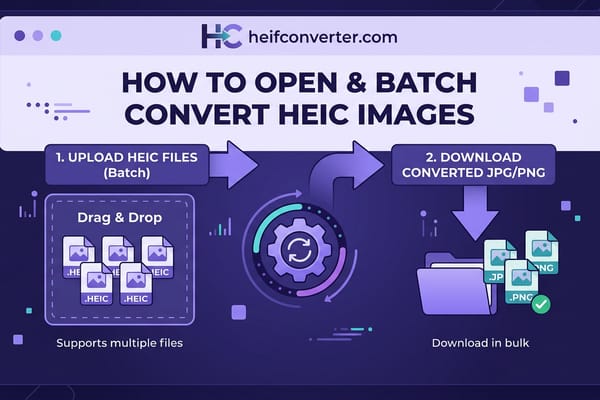
If you only need to convert one batch and don't want to install libraries, a browser-based converter is the quickest path. Many run libheif compiled to run inside the browser, so conversion happens locally with no upload:
- Open the HEIC converter in Firefox, Chrome, or any browser.
- Add your HEIC files and choose JPG or PNG.
- Download the results.
Troubleshooting
"Files still won't open after installing libheif"
On some older Fedora releases, the default libheif shipped without HEVC decoding due to patent policy, so HEIC files wouldn't decode until you added the RPM Fusion repositories. Current Fedora versions include decoding by default, so updating your system often resolves it.
"GIMP says unknown format even though libheif is installed"
Some GIMP packages — particularly certain Snap builds — shipped without libheif bundled in. If you hit this, install GIMP from your distribution's repository or the Flathub Flatpak instead, which tracks HEIC support more reliably.
"No thumbnails in the file manager"
Make sure the thumbnailer package (such as heif-gdk-pixbuf) is installed, then clear the thumbnail cache or log out and back in to force regeneration.
Frequently Asked Questions
Can Linux open HEIC files?
Yes. Recent releases like Ubuntu 24.04+ and Fedora 40+ support HEIC out of the box. On older systems, installing libheif enables it across your apps.
How do I convert HEIC to JPG on Linux?
The simplest way is the heif-convert command, or export from GIMP. A browser converter works too, with no installation.
Does heif-convert keep my photo's metadata?
Yes — it copies metadata such as date, location, and camera details from the original HEIC into the JPG.
Which package gives me the heif-convert command?
On Debian and Ubuntu it's libheif-examples. Install it alongside libheif1 and you'll have the command available.
Don't want to install anything? Convert HEIC to JPG in your browser — runs locally on Linux or any OS, free and private, with no upload.